
FrameLock — a free fix for stuttery AI clips in After Effects and Premiere
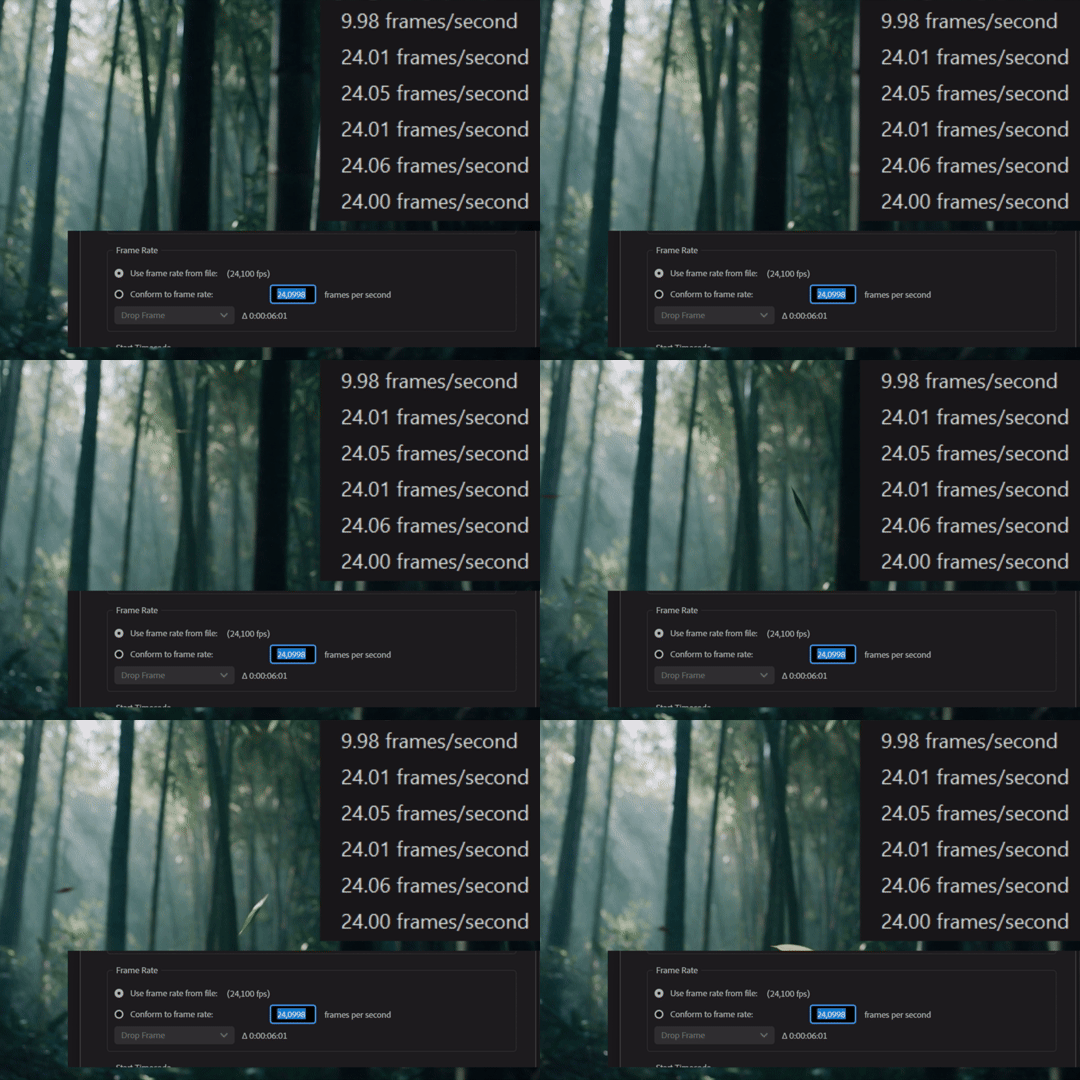
Ever had an AI clip stutter in After Effects or Premiere for no clear reason? Or slowly drift out of sync? Or show up as 24.06 fps when it should just be 24?
Your eyes are fine. The clip is the problem.
Why it happens
Every frame in a video has a timestamp that says when it should be shown. In a normal 24 fps file those are perfectly even. In a lot of Kling and Seedance downloads they wobble a little. Edit software doesn’t like that, so it guesses, and sometimes it shows a frame twice or skips one. That’s the stutter.
What FrameLock does
FrameLock gives every frame a clean, even timestamp at 24 or 25 fps. The image itself isn’t touched, so there’s no quality loss and the file stays the same size. Every frame is kept, in the same order.
- Your originals stay untouched. The fixed clip is saved next to it as
name_24p.mp4. - If the speed has to change to fit (say 30 fps to 24), the audio is removed, because it wouldn’t line up anymore.
- If a clip is too messy to fix this way, it makes a ProRes version instead and tells you.
- No ffmpeg? It offers to install it for you.
How to use it
Windows
- Download
FrameLock_24p.batorFrameLock_25p.bat. - Put it in a folder with your MP4s.
- Double-click it.
Windows will show a warning because it’s a downloaded script. Click “More info” and then “Run anyway”.
Mac
- Download
FrameLock_Mac.zipand unzip it. You get a 24p and a 25p version. - Put the one you need in a folder with your MP4s.
- Double-click it. It opens in Terminal and does its thing.
The first time, macOS will block it because it’s a downloaded script. Right-click the file and choose Open. On newer versions of macOS, go to System Settings, then Privacy & Security, and click “Open Anyway”.
Want to check what it does first? Open it in a text editor, it’s plain text.
Download: FrameLock on Google Drive
Free to use and share. Let me know if it fixes things for you.